Pysparklyr for interacting with Spark & Databricks Connect

We are thrilled to announce that the new version of pysparklyr is on CRAN!
Pysparklyr is the new extension to sparklyr that allows you to interact with Spark & Databricks Connect. We discussed sparklyr updates in our recent blog post and provided detailed instructions for working with remote clusters in the package documentation.
The new version of pysparklyr has several big user-facing updates that make working with Databricks and R together even easier.
To install the latest version of pysparklyr, run the code below:
install.packages("pysparklyr")Let’s dive in!
Installation prompt
Previously, first-time users needed to run install_databricks(). With the new version of pysparklyr, this step is not needed. If there’s no existing environment, spark_connect() will automatically prompt for installation, making the instructions much easier to follow.
library(sparklyr)

sc <- spark_connect(
  cluster_id = "Enter here your cluster ID",
  method = "databricks_connect"
)
Read more in the documentation: First Time Connecting
RStudio Snippet for Databricks Connections
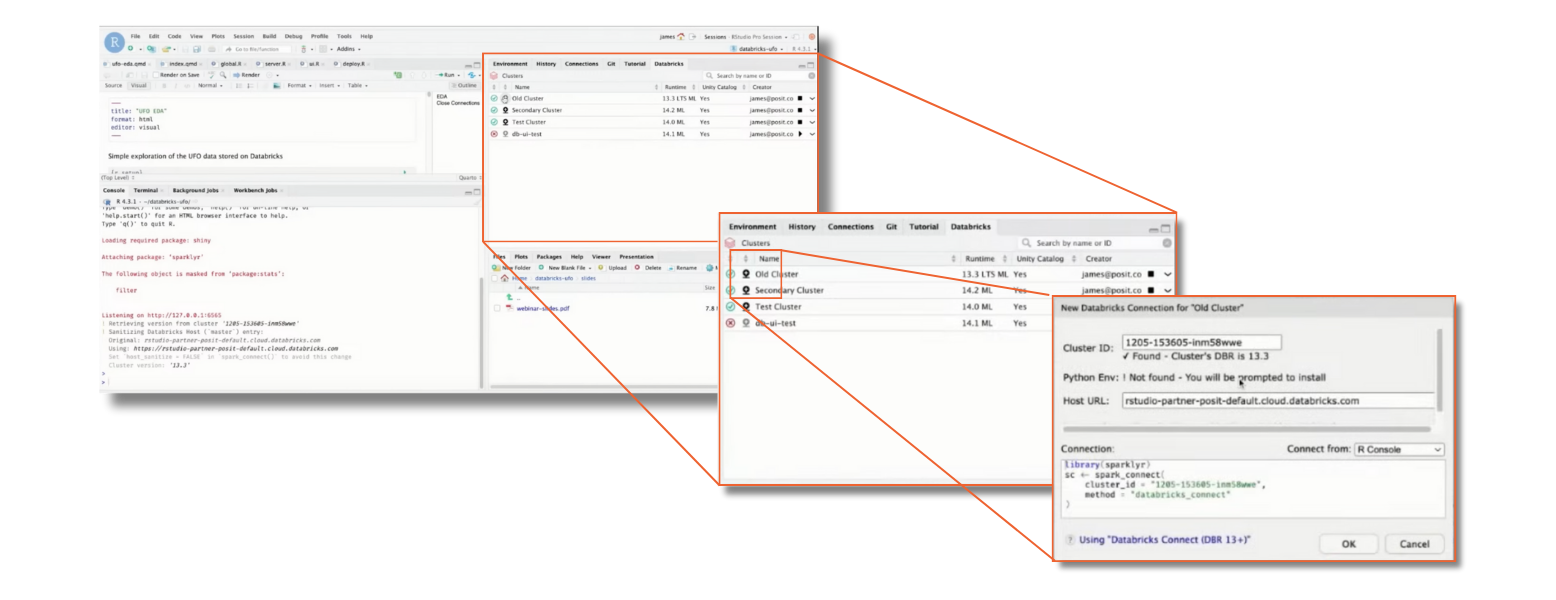
In the new Posit Workbench update, Databricks users can now easily start their clusters right from Posit Workbench. If you’re using RStudio on Posit Workbench, there’s a new Databricks pane that helps you manage your Databricks Spark clusters, as well as connections to clusters via Sparklyr. Click on the Databricks pane, and you’ll see a list of your compute clusters, their status, and more details.
Once you’ve started a cluster, you can connect to it by clicking on the Connection icon. This opens a dialogue box with all the necessary info to make the connection, including an R code snippet. Posit Workbench takes care of your Databricks credentials, so you don’t have to worry about inputting keys or tokens into the snippet.
Machine learning features
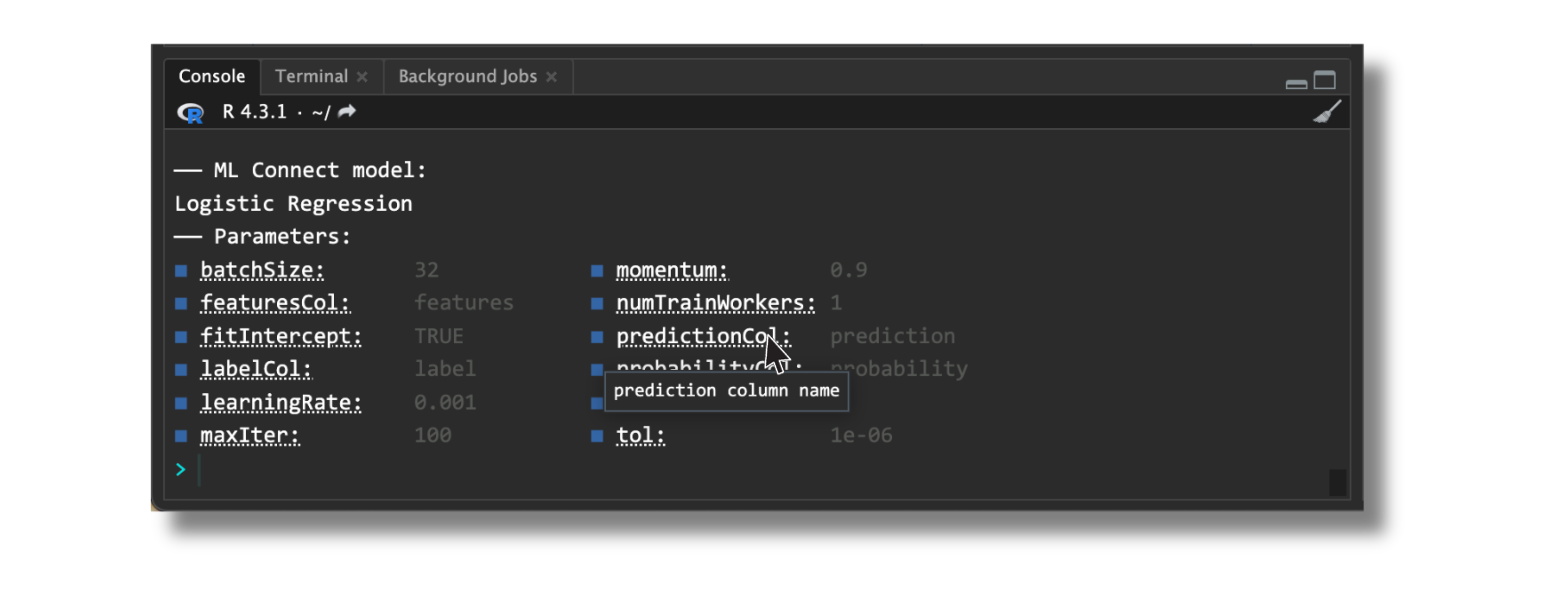
The new version now supports Logistic Regression models, Standard Scaler and Max Abs Scaler transformers, and ML Pipelines. There are a lot of useful additions, such as a feature in Connect that lets you hover over a model parameter to see a pop-up description.
Read more in the documentation: First Time Connecting
Updated sparklyr cheatsheet
The sparklyr cheatsheet, revised in December 2023, includes various updates. You can use it to find the latest functions for your work!
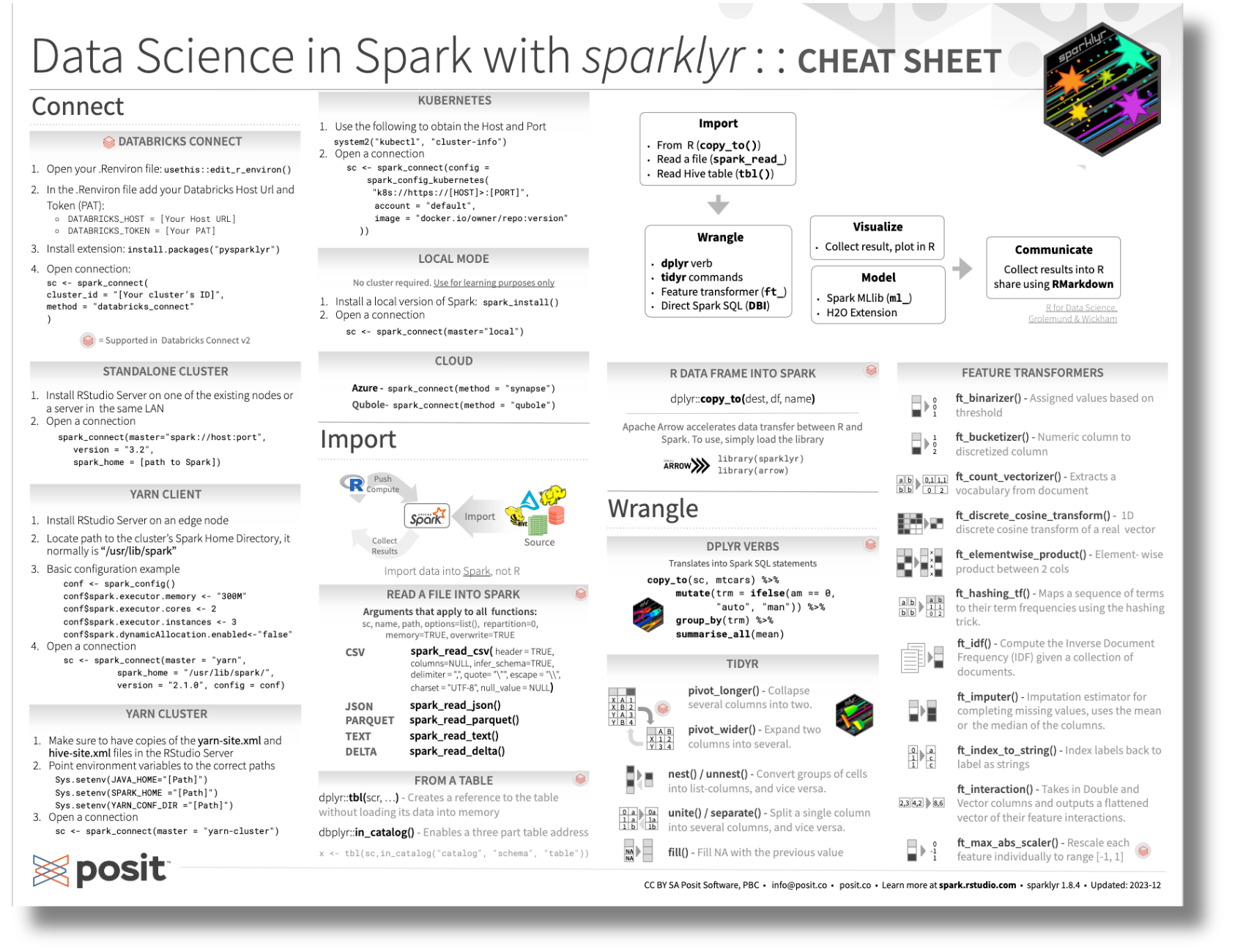
Check it out here: sparklyr cheatsheet
Update pysparklyr to interact with Spark & Databricks Connect
We hope that you enjoy these new additions to pysparklyr. For more information:
- Visit the Spark Connect and Databricks Connect v2 article on the sparklyr website
- Ask questions on the community forum
Related Content

How to secure your organization's agent plugins in Posit Package Manag...

How Posit Team governs AI for enterprise data science and research
