Leveraging Pins with Posit Connect


This is part 1 in our series of blog posts, “What can you do with Posit Connect?”
Posit Connect is a publishing platform for the authenticated sharing of R and Python data products in one convenient place that brings the power of data science to your entire organization.
For some workflows, a CSV file is the best choice for storing data. However, for the majority of cases, the data would do better if stored somewhere centrally accessible by multiple people where the latest version is always available. This is particularly true if that data is reused across multiple projects or pieces of content. With the pins package, it’s easier than ever to have repeatable data.
You might find this helpful if:
- You have reports that need to be regularly updated, so you want to schedule them to run with the newest data each week
- You reuse data across multiple projects or pieces of content (Shiny app, Jupyter Notebook, Quarto doc, etc.)
- You’ve chased a CSV through a series of email exchanges or had to decide between data-final.csv and data-final-final.csv
- You haven’t heard of pins yet!
Pins
Pins is an open-source package that allows you to publish and share R or Python objects (data, models, etc.) across projects and with your colleagues.
The process of pinning an object is similar to using a push-pin to pin a piece of paper to a corkboard:
- Piece of paper: your R or Python object
- Corkboard: where you want to pin your object
- Push-Pin: the pins package
Example of pinning an R dataset to Posit Connect:
Follow-along:
1. Install and load the pins package:
# Install pins
install.packages("pins")
2. Set up Posit Connect as your board:
Pins supports a variety of boards, including Posit Connect, Amazon S3, Azure Storage, and Microsoft 365. To use Posit Connect as a board, you first need to authenticate. If you’re using the RStudio IDE, you can do this via Tools –> Global Options –> Publishing –> Connect. Otherwise, you can manually set the Connect server address and supply an API key.
Once Posit Connect has been authenticated, we can connect to it via the board_connect() function and save the connection as my_board. The output from this function in your environment should reflect your Connect server.
my_board <- pins::board_connect()# Connecting to Posit Connect [version number] at [Connect URL]3. Pin R object to Posit Connect:
For this example, our object is the mtcars dataset:
# Assign mtcars datest to the "r_object" variable
r_object <- mtcars
And now we can pin the r_object to our Posit Connect server. We’ll name our pin mtcars_dataset and publish it as a CSV file.
# Pin to Posit Connect
pins::pin_write(
  x = r_object,
  board = my_board,
  name = "mtcars_dataset",
  type = "csv"
)
# Writing to pin 'ryan/mtcars_dataset'Here is the pin on Posit Connect:
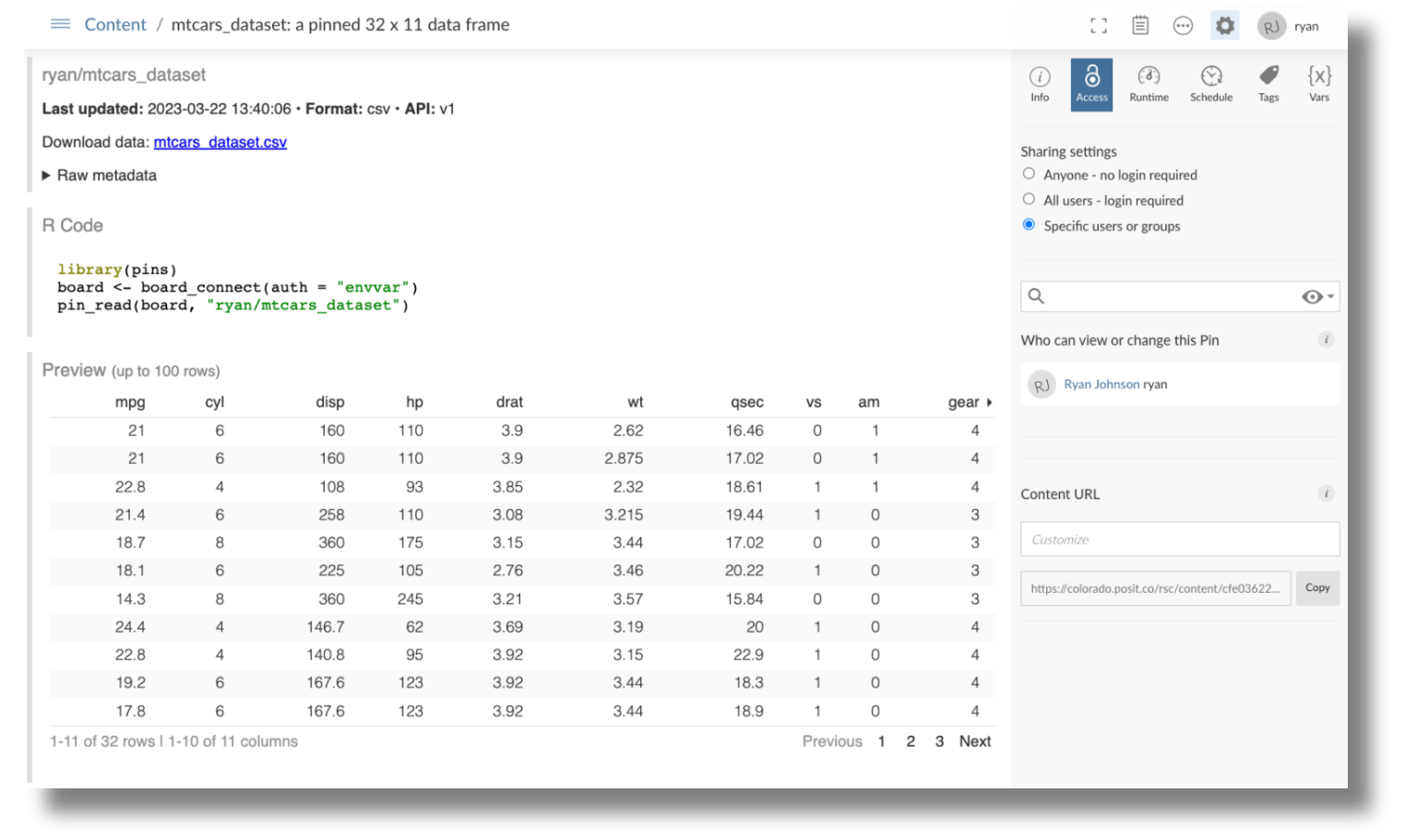
4. Read the pin from Posit Connect:
Now that our R object has been pinned, we can easily read the pin into another R project or share the pin with a colleague. In the image above, Posit Connect shows you how to read the pin using R:
# Read the pin
pins::pin_read(board = my_board,
               name = "ryan/mtcars_dataset")
Additional resources
- Example workflow that involves Quarto, pins, plumber API, vetiver, and shiny
- Connect User Guide (Pins for R & Pins for Python)
- 9 ways to use Posit Connect that you shouldn’t miss
Learn more
If you haven’t had a chance to try Posit Connect before, or you’d like to learn how your team can better leverage pins, schedule a demo with our team to learn more!

Ryan Johnson
Related Content

Snowflake Native Apps vs. Connected Apps for financial services

We prove model governance by live evidence, not paperwork
