Building interactive data dashboards with Streamlit in Positron


For Python users, Streamlit is a popular and straightforward option for quickly turning data analysis into shareable, interactive applications. However, the development experience can feel fragmented by requiring developers to jump between text editors, terminals, and browsers to build, test, and debug.
This changes when you combine Streamlit with Positron, our new integrated development environment (IDE). Designed with data analysis and multi-language development in mind, Positron provides a unified, purpose-built environment for data scientists. It includes features like real-time data apps, dashboards, reports, and API previews, streamlined data handling, and easy deployment, all aimed at optimizing your data app development workflow and making Python app development more efficient and intuitive.
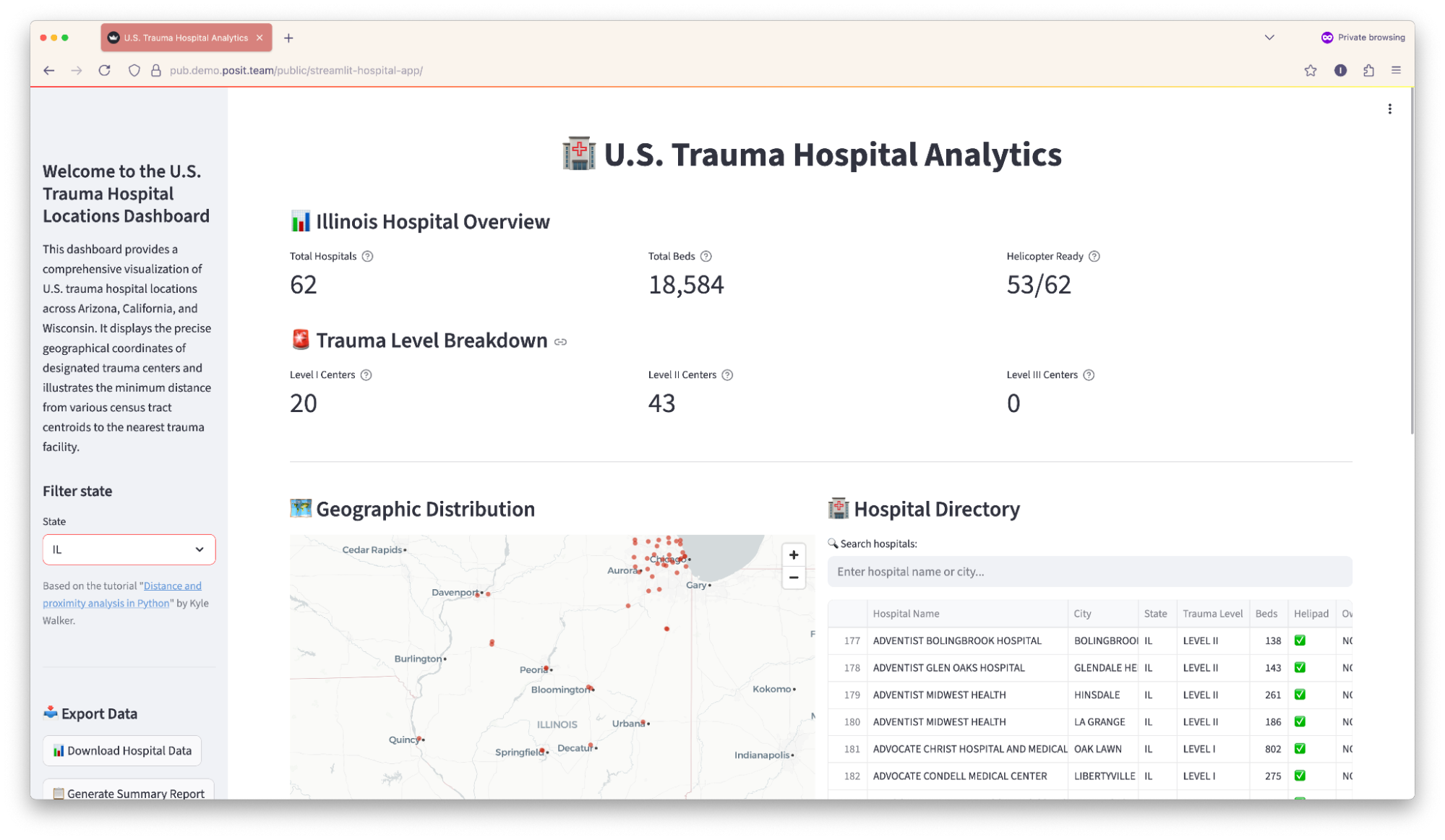
In this guide, we’ll explore how Positron’s features enhance Streamlit development. We’ll use a real-world example: a U.S. Trauma Hospital Analytics dashboard that visualizes hospital locations, analyzes geographic accessibility, and provides interactive insights across all 50 states, based on Kyle Walker’s tutorial.
Check out the video, or read the walkthrough below.
Why develop Streamlit apps in Positron?
Positron is an efficient environment for Streamlit development that puts everything you need in one place: code, preview, console, and debugging.
- Integrated viewer: Positron features a handy “Play” button to preview your app directly within an in-IDE Viewer pane (no need to open new browser tabs, configure external tools, or CLI options).
- Live preview: See your app update in real-time as you code.
- Positron Assistant: Get context-aware suggestions and AI-powered help specifically for data science app development (available as a Preview feature).
- Integrated terminal: Run your Streamlit commands without leaving the IDE.
- Built-in Git integration: Make version control an integral part of your workflow.
- Package and environment management: Handle all your Python dependencies directly within Positron, with Python runtime consistency between interactive analysis via Notebooks or the console and terminal-based Streamlit app previews.
- Advanced debugging: Benefit from full debugging support for your apps to identify and resolve issues.
Setting up Positron and your project
Install Positron
First, download Positron from the official download page.
Install Python
If you don’t already have Python installed, you can follow the recommended instructions to set up a new version on your computer. In my case, I used pyenv to install version 3.13.1, although if you have already installed uv, we also support using it for managing virtual environments or even bootstrapping Python.
Open the Project Folder
Open up Positron, and from the Welcome Page, click “New from Git”.
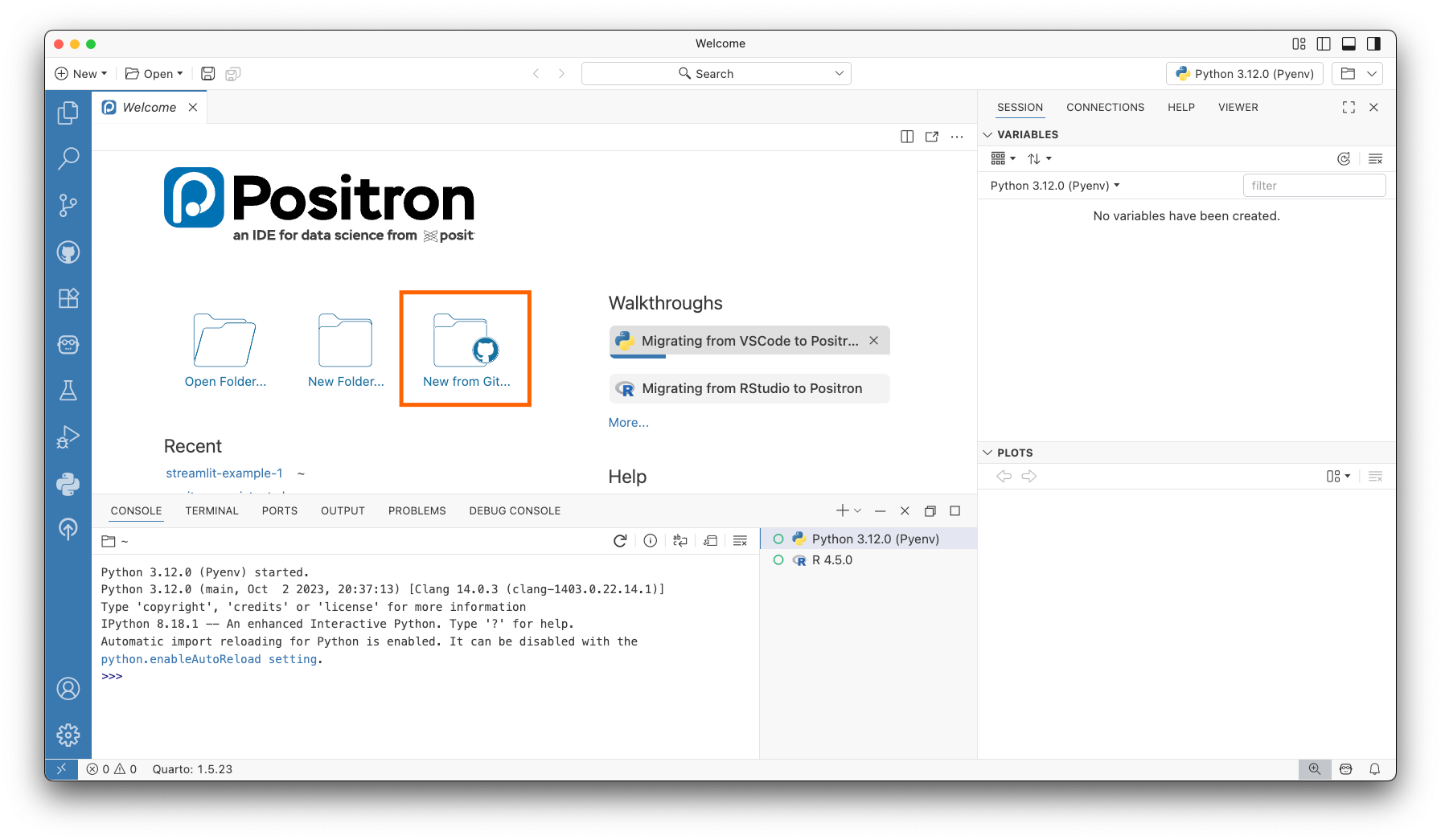
Then paste the GitHub repository URL in the dialog box:
https://github.com/posit-marketing/streamlit-example.gitSave it in your desired directory, then open the cloned repository. You’ll now be in the project folder. On the left activity bar, you can see the project files in the File Explorer, which you can view and open:
streamlit-example/
├── app.py            # Main Streamlit application
├── original-app.py   # Original Streamlit application
├── trauma.geojson    # Hospital location data
├── requirements.txt  # Python dependencies
├── .gitignore        # Version control exclusions
└── README.md         # Project documentation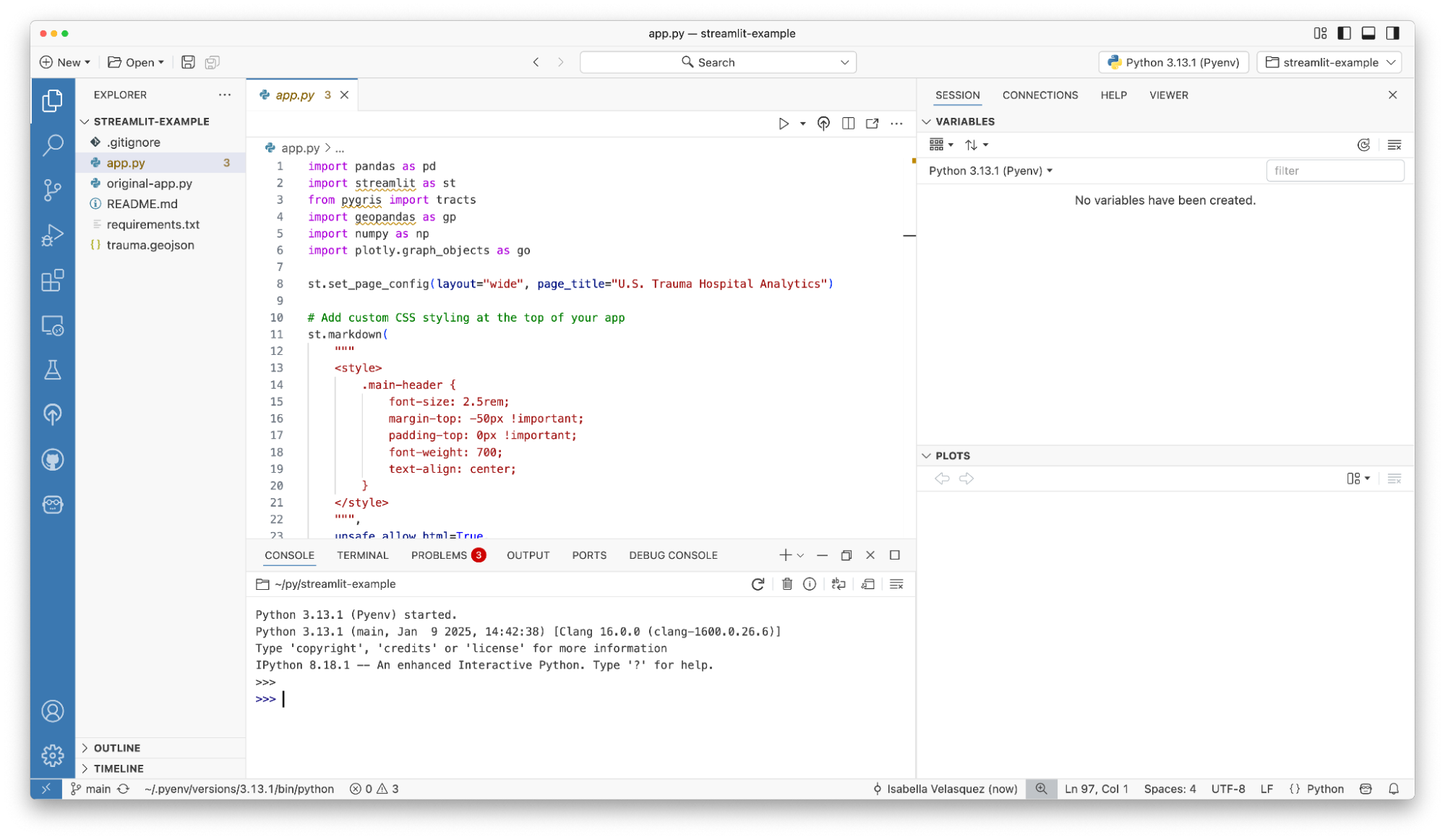
Set up your environment
Now, let’s set up your Python environment. For this walkthrough, I am using uv.
In the Terminal, run the snippet below to create the virtual environment:
uv venvPositron will prompt you to select the Python environment for your project, click “Yes”. Now both the console and new terminals will reflect the new project-specific virtual environment.
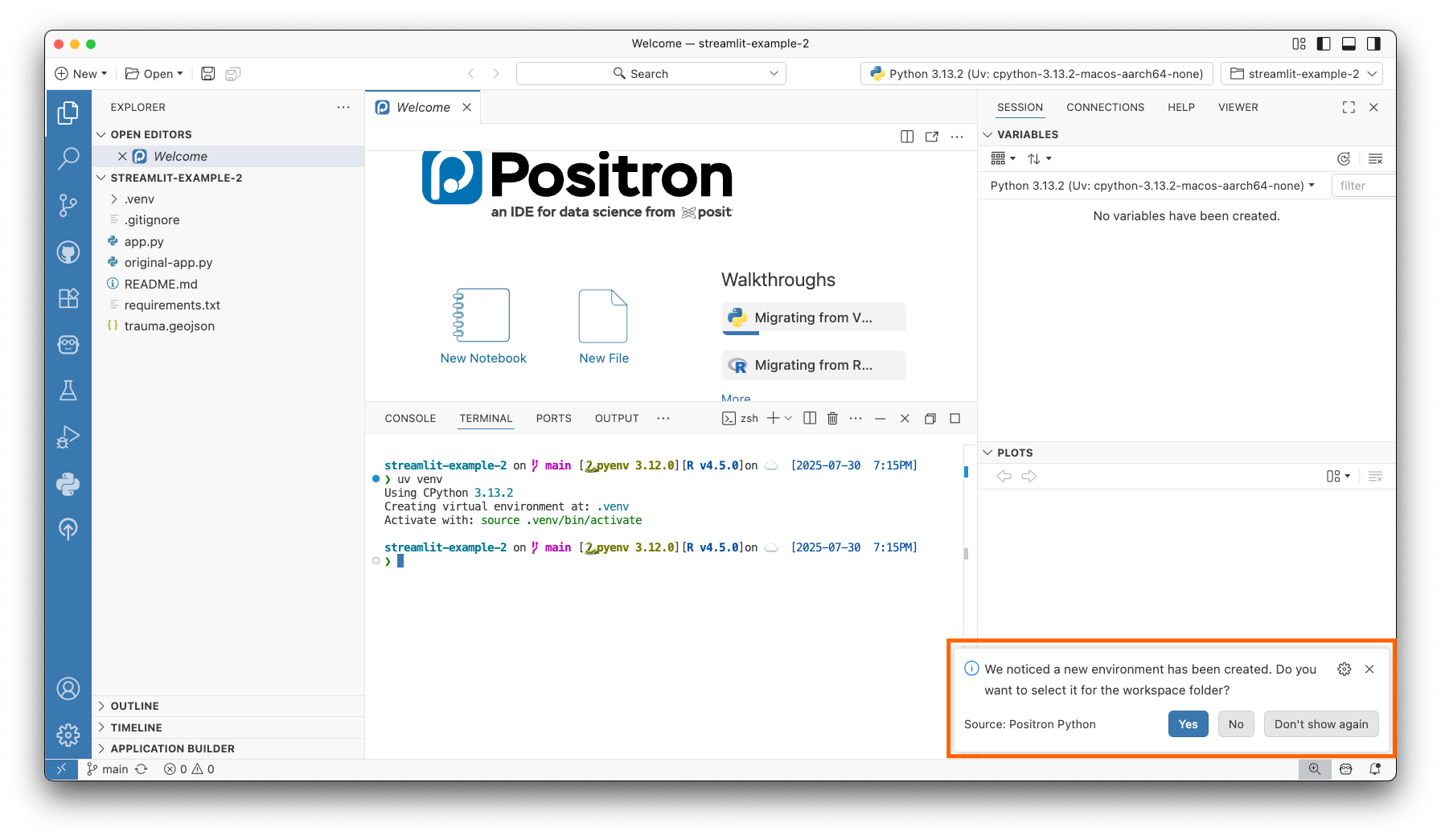
Install all the dependencies by running the below in the Terminal:
source .venv/bin/activate
uv pip install -r requirements.txt
Now you are ready to start building!
Building your app in Positron
Quick app overview
The original-app.py code, available on GitHub, contains several key Streamlit components:
- A state filter using
st.selectbox() - The
@st.cache_datadecorator to optimize data loading - Healthcare metrics displayed with
st.metric() - A histogram using
st.bar_chart() - Streamlit’s built-in map with
st.map()
To take a closer look at the data, run this code in the Positron Console or a new Python script:
import geopandas as gp
trauma = gp.read_file("trauma.geojson")
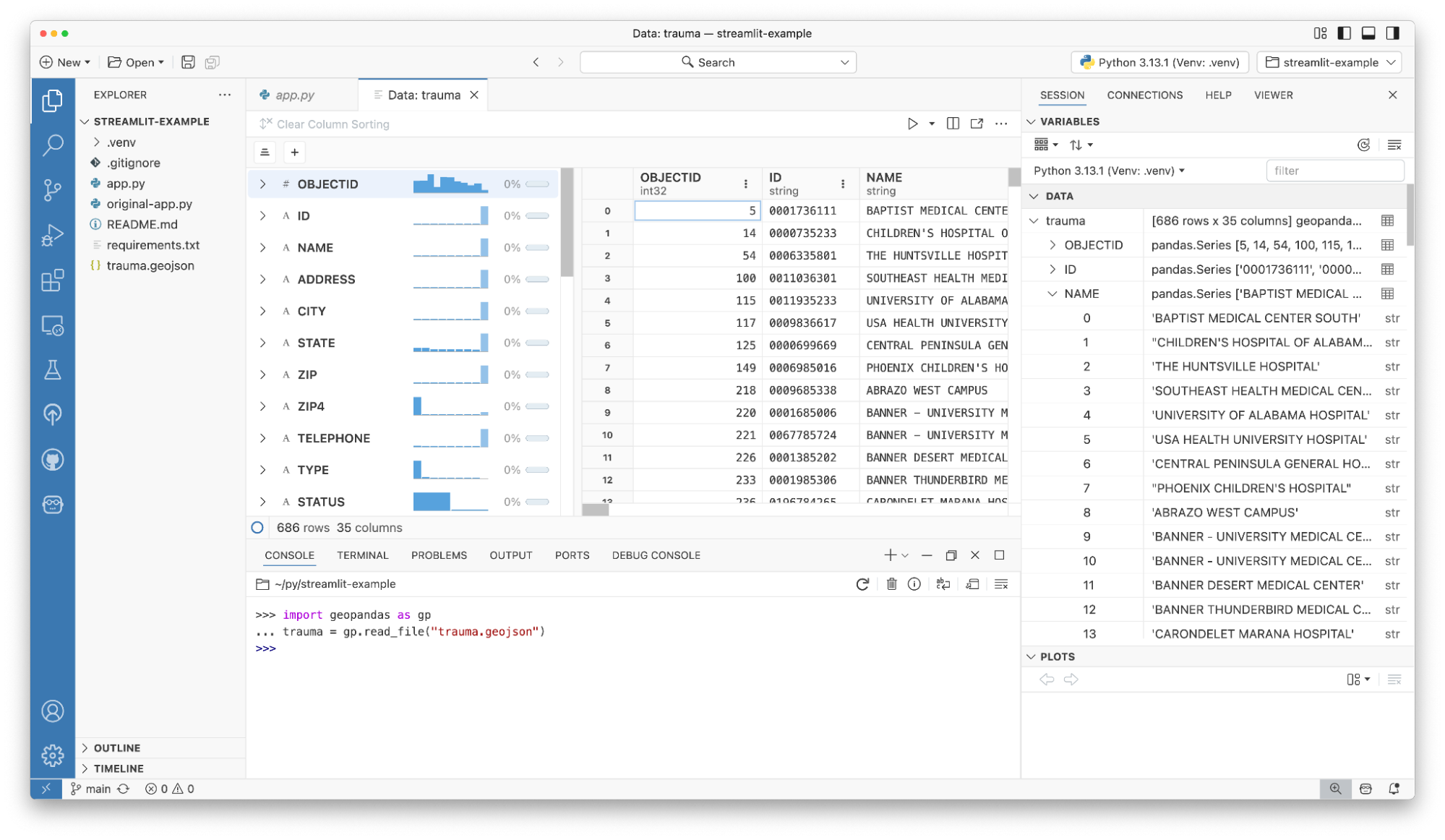
This loads the trauma.geojson data into your Positron session, populating the Session pane in the Secondary sidebar. Click on the variables to preview their contents.
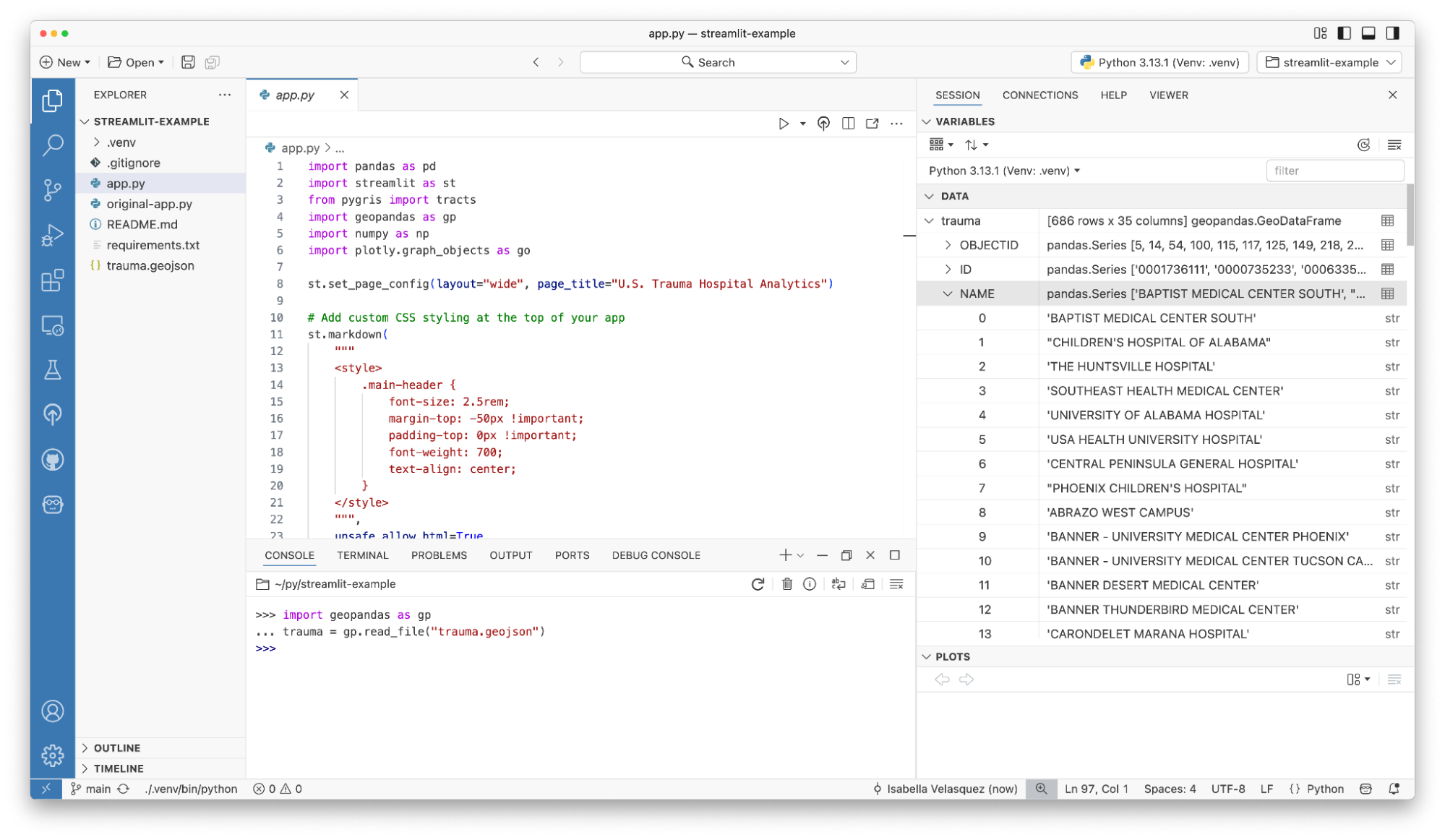
Use the table icon (or %view trauma in the console) to open the ‘trauma’ dataframe in the Data Explorer. Here, you can examine summary statistics, sort, filter, and browse the data in a spreadsheet-like view. Once you’re done, close the Data Explorer and return to original-app.py.
Previewing the app
You have everything you need to run your Streamlit app! Open original-app.py and click the “Play” button to see a preview in the Viewer pane.
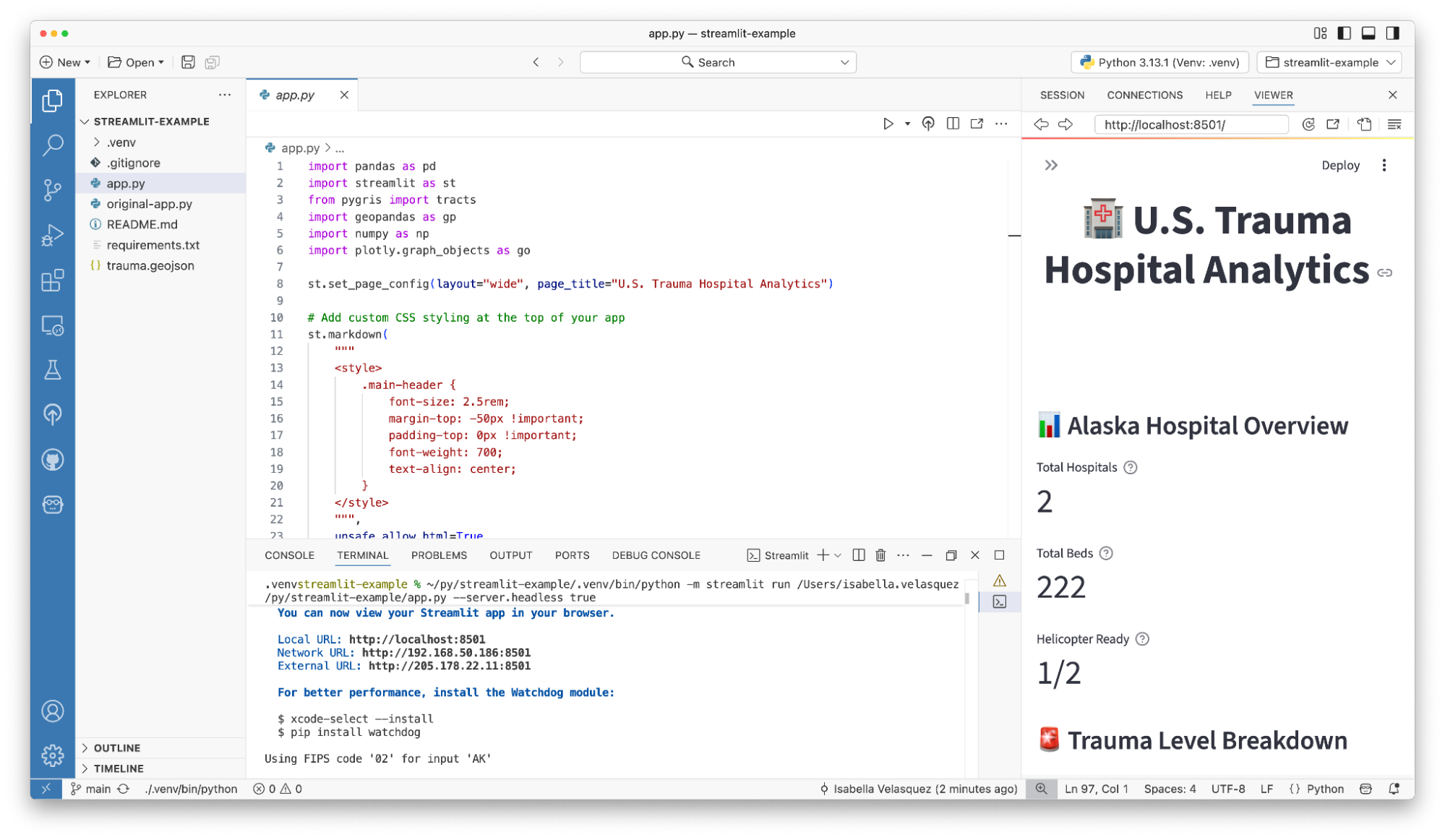
You can interact with the app directly in the Viewer pane, or click the “pop out” button to open it in your default browser.
To enable live reloading, save app.py after making an edit. The app will prompt you to “Reload” or “Always Reload.” Click “Always Reload” to enable automatic reloading for this session.
For instantaneous updates anytime you open this folder, configure your Streamlit config.toml file. From your Streamlit app’s root directory (where app.py is), run in the Terminal:
mkdir -p .streamlit
nano .streamlit/config.toml
Then, add these settings to the nano editor:
[server]
runOnSave = true
Press Ctrl + O (to save), Enter (to confirm filename), then Ctrl + X (to exit). Alternatively, manually create the .streamlit folder and config.toml file, then paste and save the configuration. Now, your preview will automatically update whenever you save changes in app.py. Try it out by editing the title of the dashboard.
Debugging the app
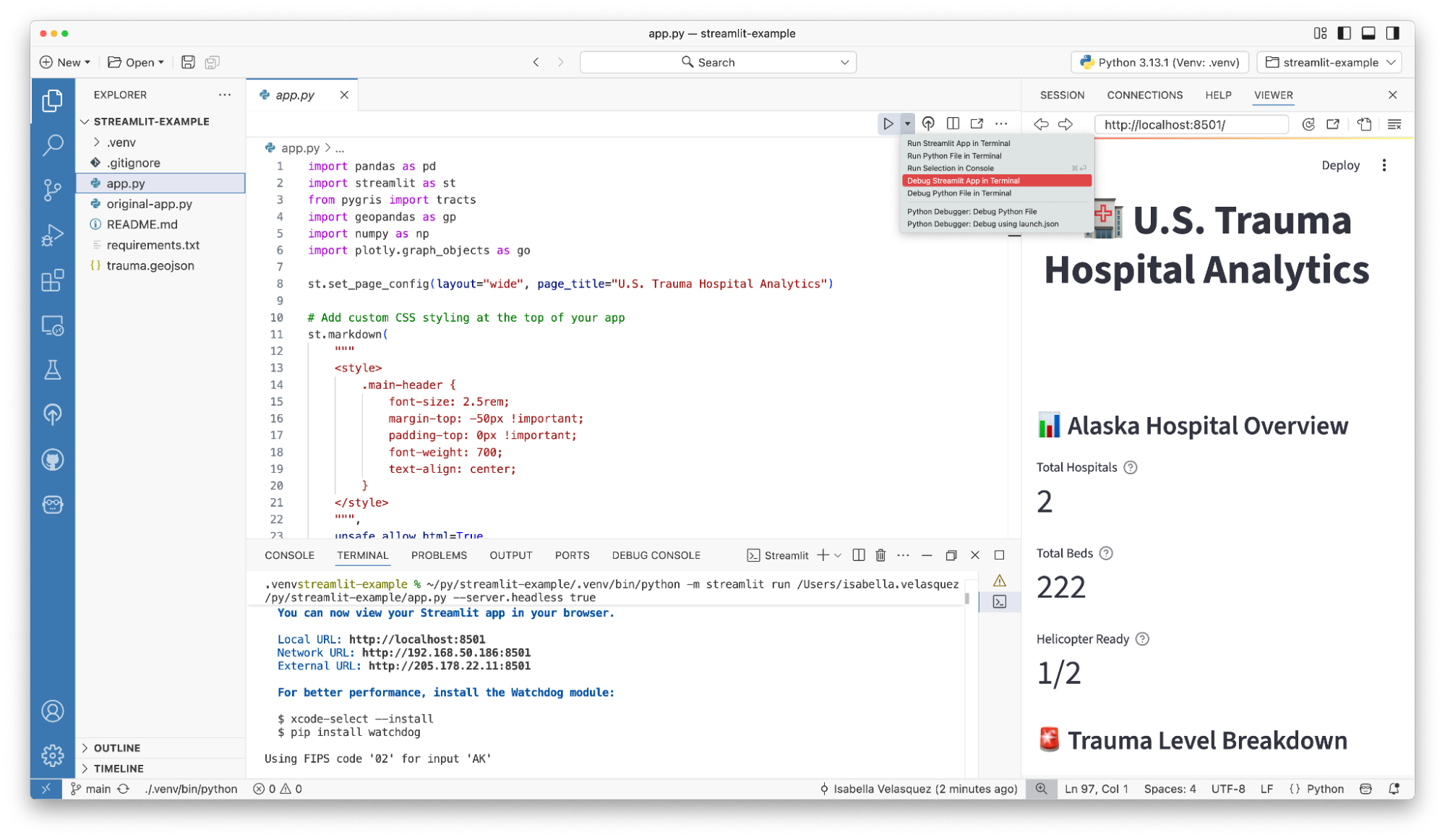
Positron includes robust debugging features for app development. Set breakpoints in the editor margin, click the “Play” button, and then select “Debug Streamlit App in Terminal.” Positron will run the app in a dedicated Terminal tab, open the app URL in the Viewer pane, and launch it in debug mode.
Code assistance with Positron Assistant (Preview)
When I first created this dashboard (two years ago!), I focused on demonstrating deployment to Posit Connect. For this tutorial, I wanted to improve its features and functionality.
Positron Assistant (a preview feature in Positron 2025.07.0-204+) provides LLM integration for chat (with Anthropic) and inline completions (with GitHub Copilot). You can configure it by following thePositron Assistant documentation.
Once configured, open it from the Activity Bar. It automatically detects app.py and relevant environment variables.
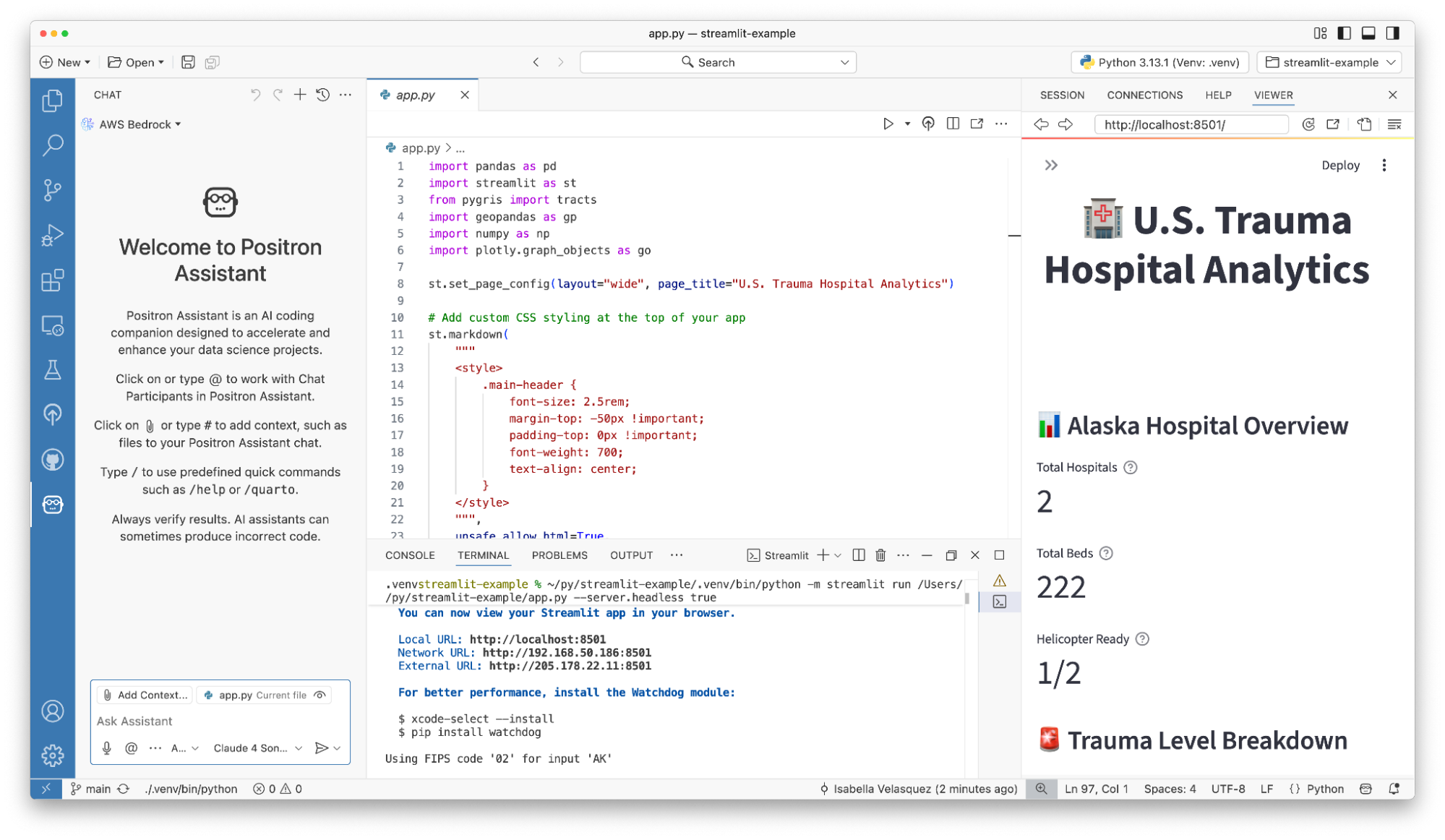
I wanted a quick overview of key metrics for each state, such as the number of helipads. I asked Positron Assistant, “Can you add a row of metrics to the dashboard using st.metric? I would like the three metrics to be number of hospitals, number of level I trauma centers, and number of helipads, with the data filtered by whatever is chosen in st.filter”. Positron Assistant performed the necessary calculations and provided complete code snippets.
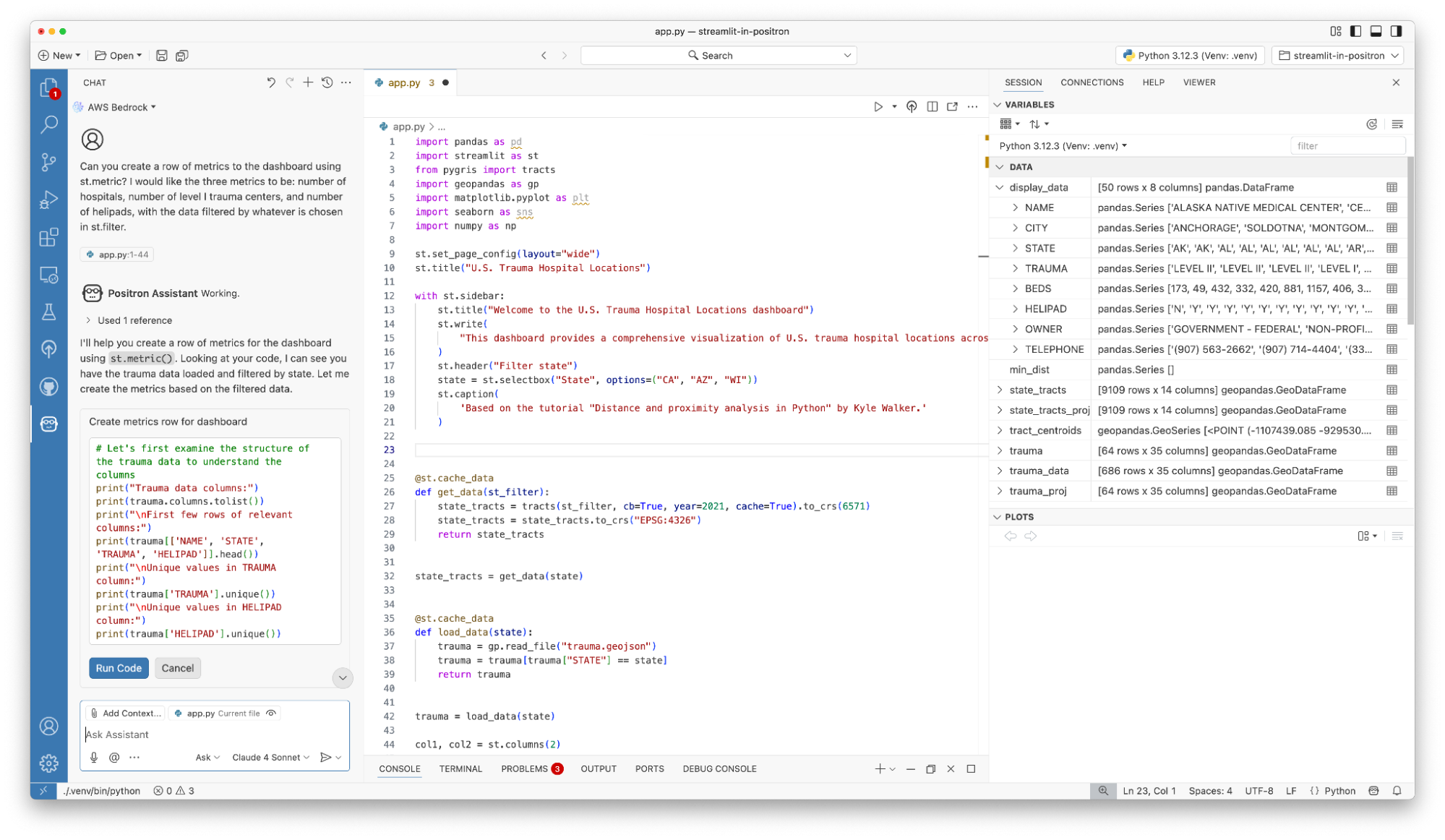
You have a few options for adding the suggestions: edit and copy the code from the chat, insert the code into a new file, or, what I found most helpful, insert it right at your cursor, as Positron Assistant guides you to the correct spot.
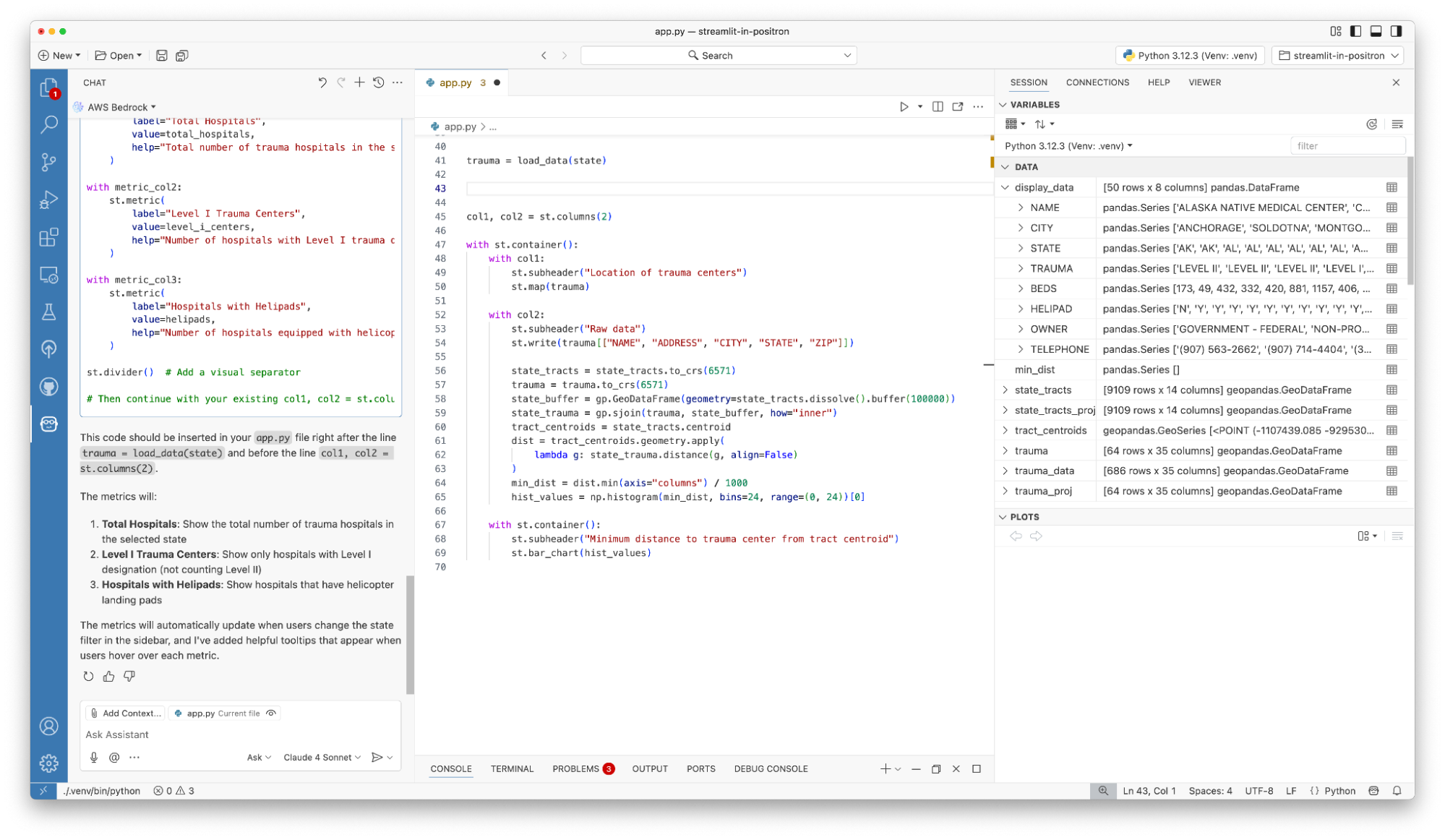
I then built out the rest of the dashboard, adding more metrics and leveraging Positron Assistant for further suggestions that shaped the final design.
Deploying your Streamlit app from Positron
Once your Streamlit app is ready, you’ll want to share it with the world. The Posit Publisher makes deployment possible directly from Positron to Posit Connect, our enterprise publishing platform for Streamlit applications, Jupyter Notebooks, Quarto and R Markdown reports, Plumber and Flask APIs, Dash, Bokeh, Voilà, and Shiny dashboards.
Note: Publishing to Posit Connect Cloud, our online platform for cloud publishing with a free tier, will soon be supported in the Posit Publisher as well. Deploy Python frameworks such as Streamlit, Dash, Bokeh, and more. Get ready and sign up for a free Posit Connect Cloud account today!
With my Posit Connect deployment configured, I chose a title, selected my data and app file, and clicked “Deploy Your Project.” Positron bundled the project and sent it directly to Posit Connect.
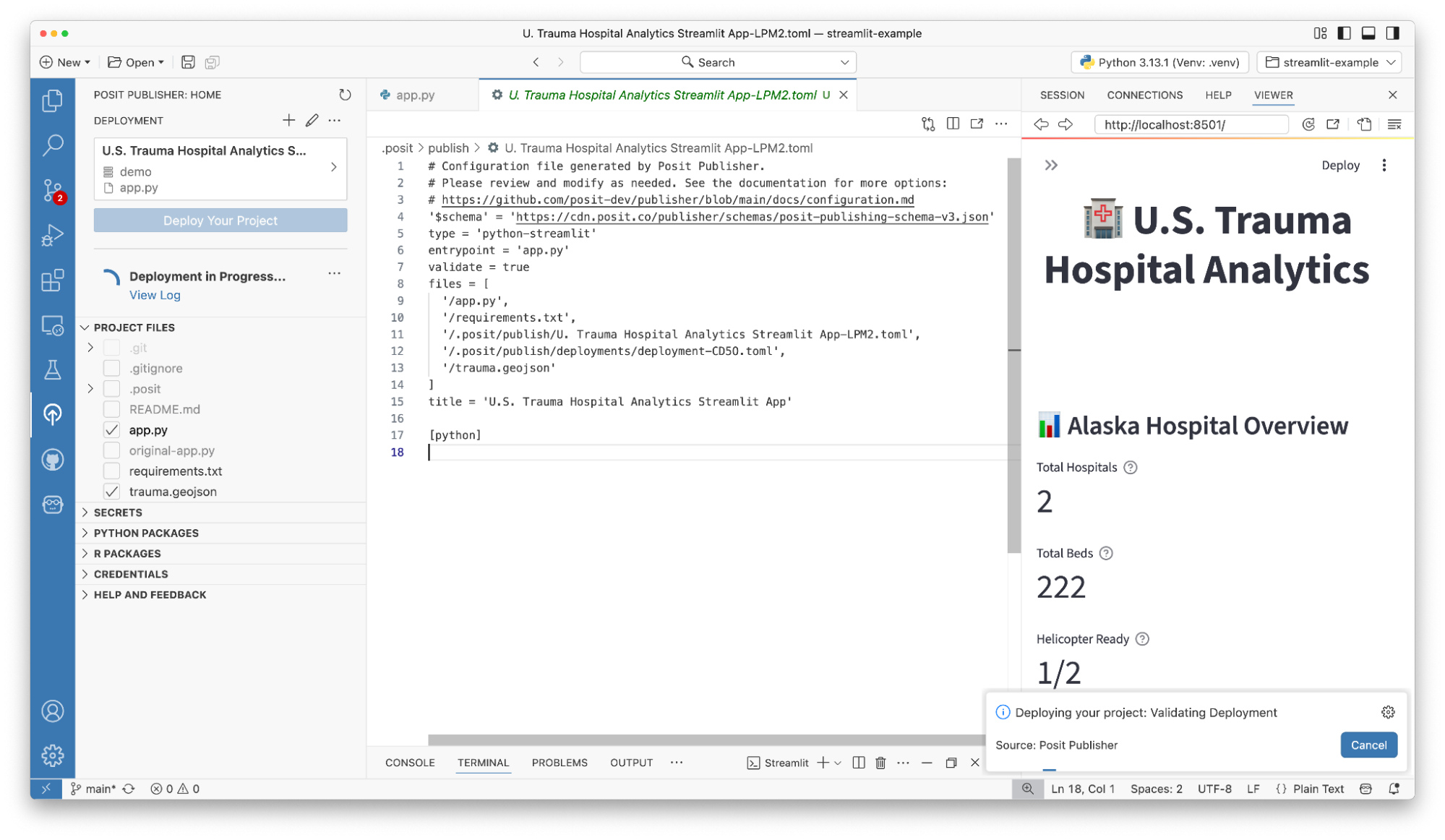
Finally, I configured the app to be “Open to anybody”, and you can see it here!
Try Positron for your next Streamlit app
Positron can help your Python app development workflow by consolidating essential tools, from coding and live previewing to debugging and deploying. Whether you’re building with Streamlit, Shiny, Dash, or another framework, give it a try and see how Positron streamlines your next data app project!

Isabella Velásquez
Related Content

Don't bring a spreadsheet to a data fight

Snowflake Native Apps vs. Connected Apps for financial services
